
The ProtoMap platform is where your organization explores the graph built from its scans: every gRPC service, how the services call each other, and how protobuf fields flow between them. You can browse it yourself in the workspace, or ask the assistant in plain English.
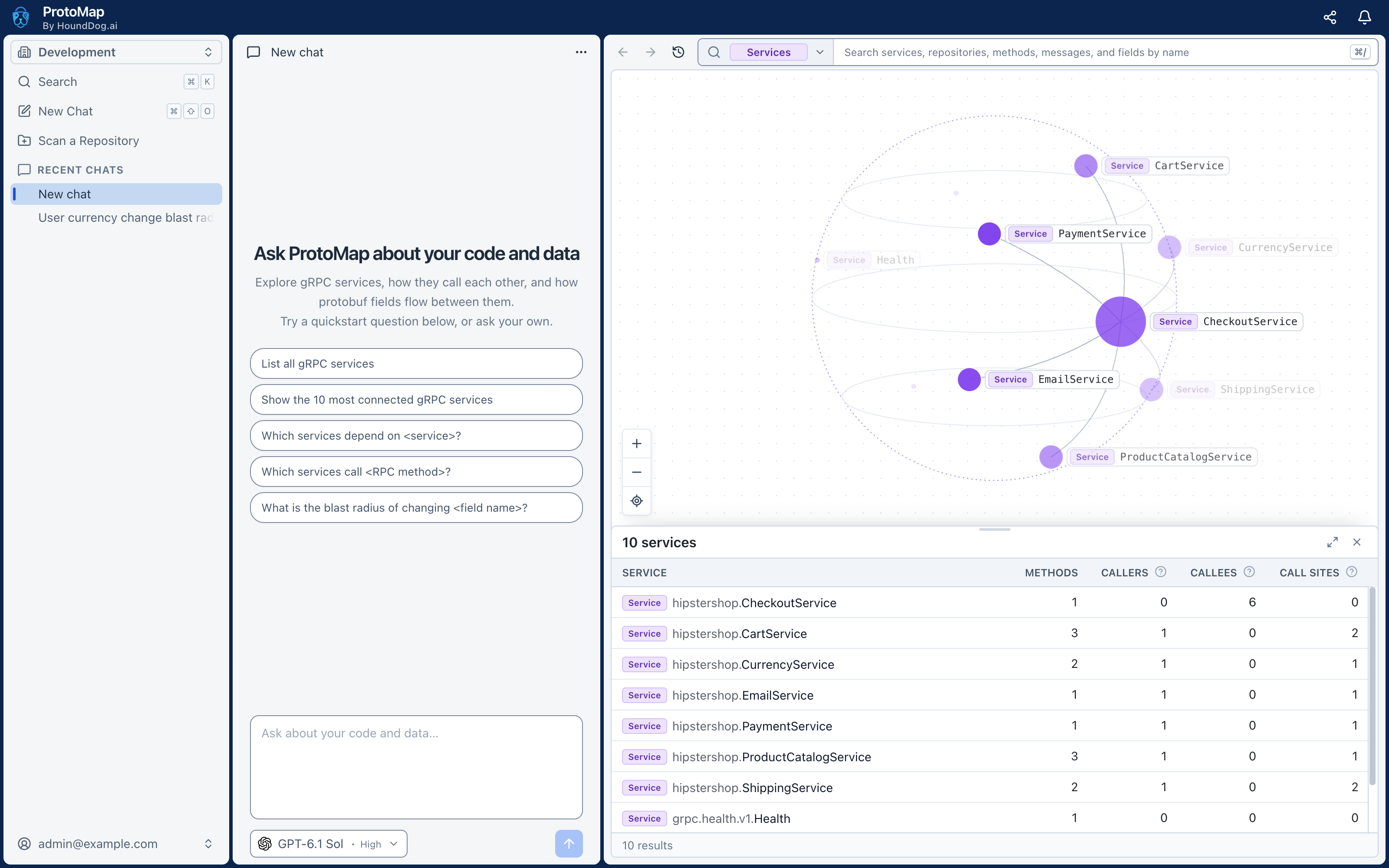
Layout
Section titled “Layout”| Area | What it holds |
|---|---|
| Top bar | The logo, Share this page, and notifications. |
| Sidebar | Your organization, Search, New Chat, Scan a Repository, your pinned and recent chats, and your account. |
| Chat | A conversation with the assistant, with the composer where you write your next message. |
| Workspace | The graph: a view of repositories, services, methods, messages, or fields, with a detail sheet across the bottom. |
Click the logo, or press ⌘ B (Ctrl B on Windows and Linux), to collapse the sidebar to a rail of icons. The chat can sit left, right, or below the workspace, or collapse out of the way; use the menu in the chat header.
Getting Started
Section titled “Getting Started”The first time an Owner or Admin signs in to an organization without an AI provider, ProtoMap opens Set up ProtoMap:
- Configure AI — connect an AI provider for the assistant with your own API key, and send it a test prompt. You can connect more than one, or skip this step and do it later.
- Install CLI — the commands to install the CLI, log it in, connect a coding agent, and scan a repository.
A short tour of the sidebar, the assistant, and the workspace follows. To see the CLI steps again later, click Scan a Repository in the sidebar.
The graph is empty until someone scans a repository. Until then, the assistant asks you to scan one first.
Search
Section titled “Search”Press ⌘ K (Ctrl K) or click Search in the sidebar to jump to a repository or a chat, or to run an action such as New Chat or Settings.
To find a service, method, message, or field, use the search bar at the top of the workspace instead. See Workspace.
Sharing
Section titled “Sharing”Every view has its own address. Share this page in the top bar copies a link that anyone in your organization can open. Your chat stays private: the link opens only the workspace view.
Live Updates
Section titled “Live Updates”The platform updates without reloading. New scans appear in the graph as soon as they are processed, and the assistant’s replies stream in as it writes them. If the connection to the server drops, the notifications bell says so until it returns.
Keyboard Shortcuts
Section titled “Keyboard Shortcuts”On Windows and Linux, use Ctrl instead of ⌘.
| Shortcut | Action |
|---|---|
| ⌘ K | Search repositories, chats, and actions |
| ⌘ / | Search the workspace, even from the composer |
| ⌘ ⇧ O | Start a new chat |
| ⌘ B | Collapse or expand the sidebar |
Organizations
Section titled “Organizations”You can belong to more than one organization, with one account. The organization switcher at the top of the sidebar moves between them; each browser tab works in one organization at a time. See Organizations, and Users and Roles for who can do what.